Open Signature
INTRODUCTION
Open Signature is a security method to ensure the OpenAPI request is valid and secured.
The developer must acquire a set of required keys to create and verify the Open Signature. The developer can obtain the keys in the Mini App Center.
How to access
- Login to Mini App Center
- Open a Mini App Detail page
- Choose Settings > Development
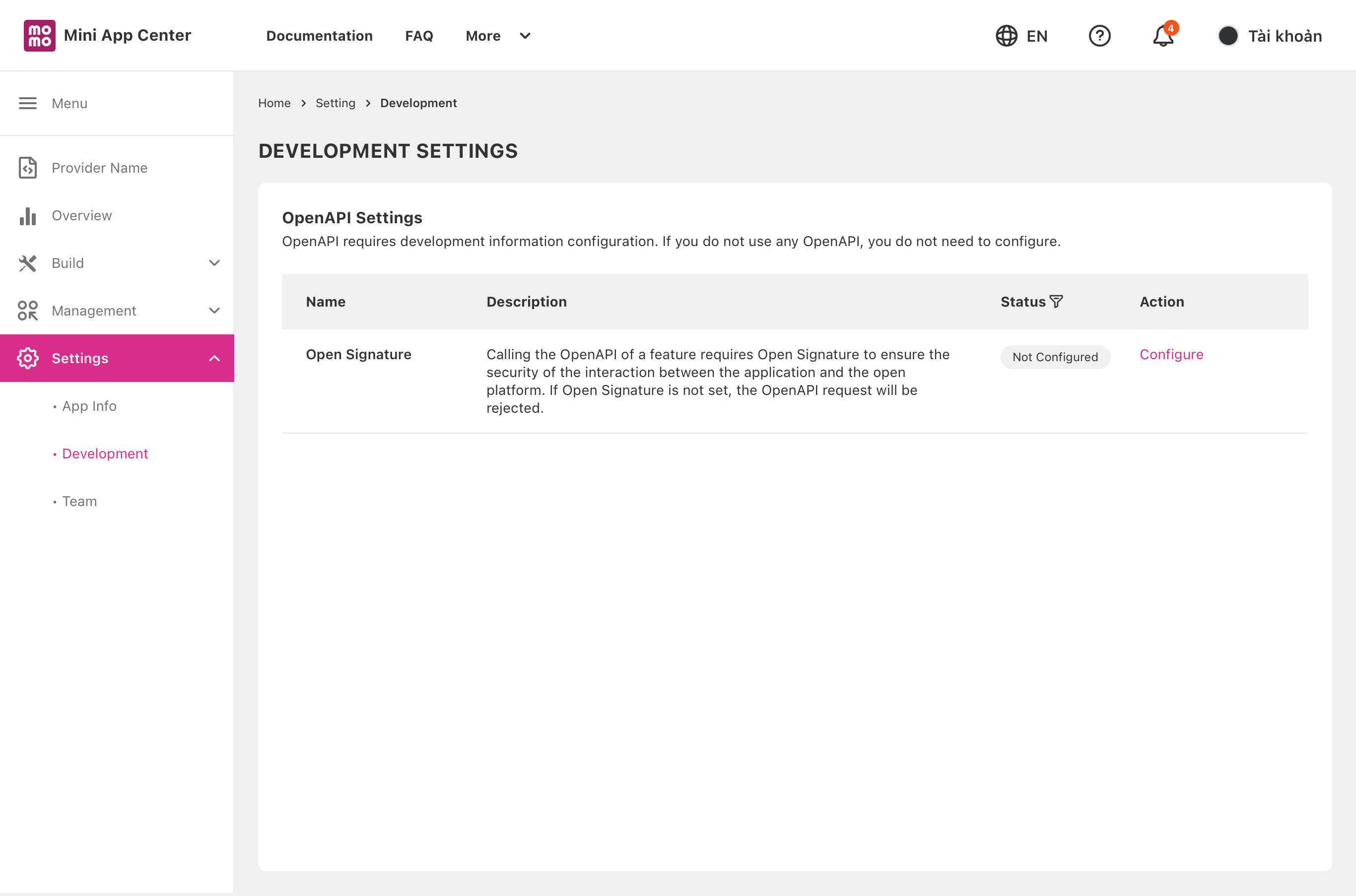
GENERATE KEYS
First, access the Mini App Center, and open the Mini App Detail page. On the Mini App Detail page, choose Setting > Development. On the Development Settings page, click Configure in the Action column of the Open Signature setting.
The Open Signature Detail page will appear. On this page, developers can generate the required keys and copy them to the source code. Click Generate New Keys to generate the keys.
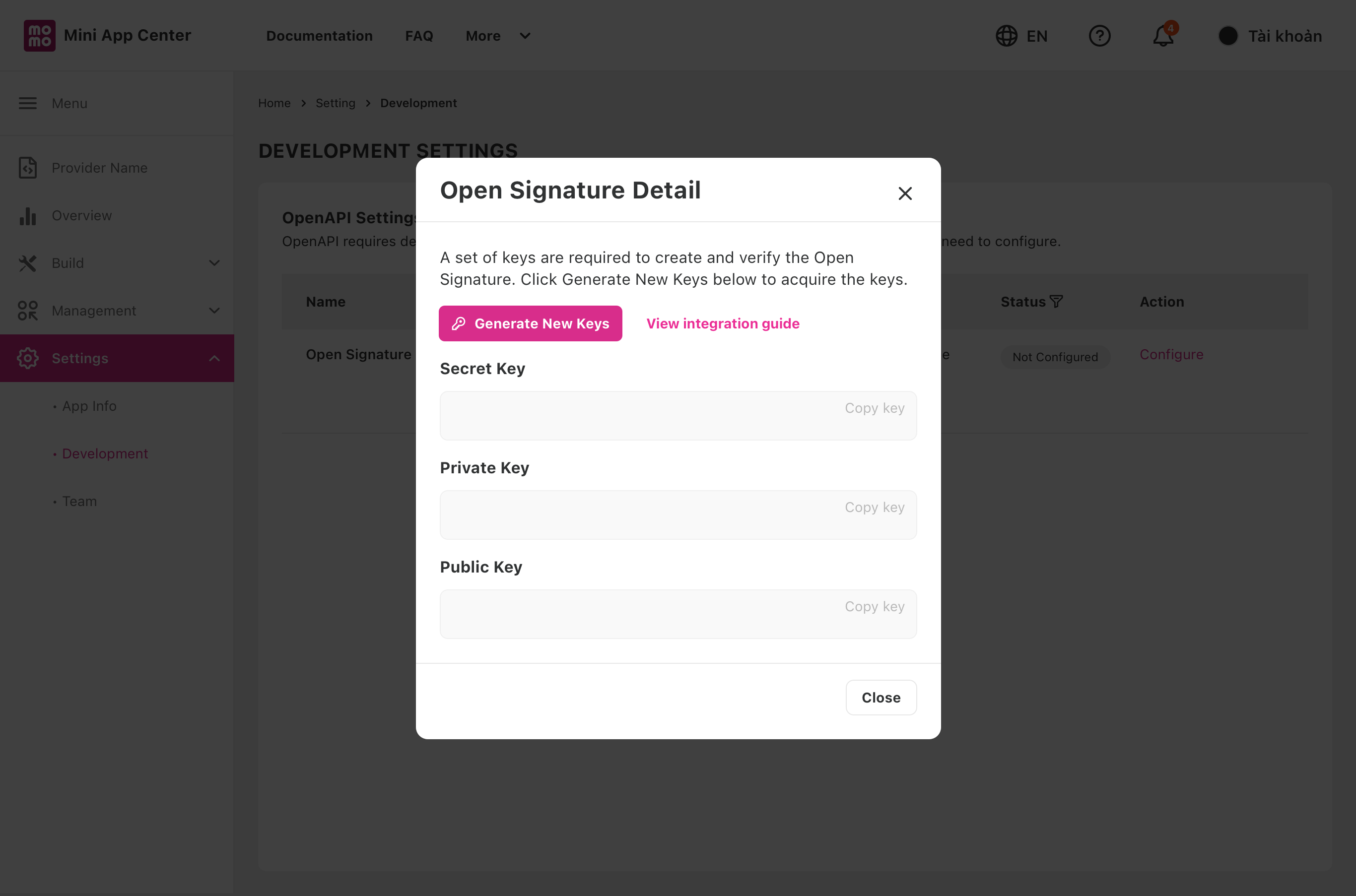
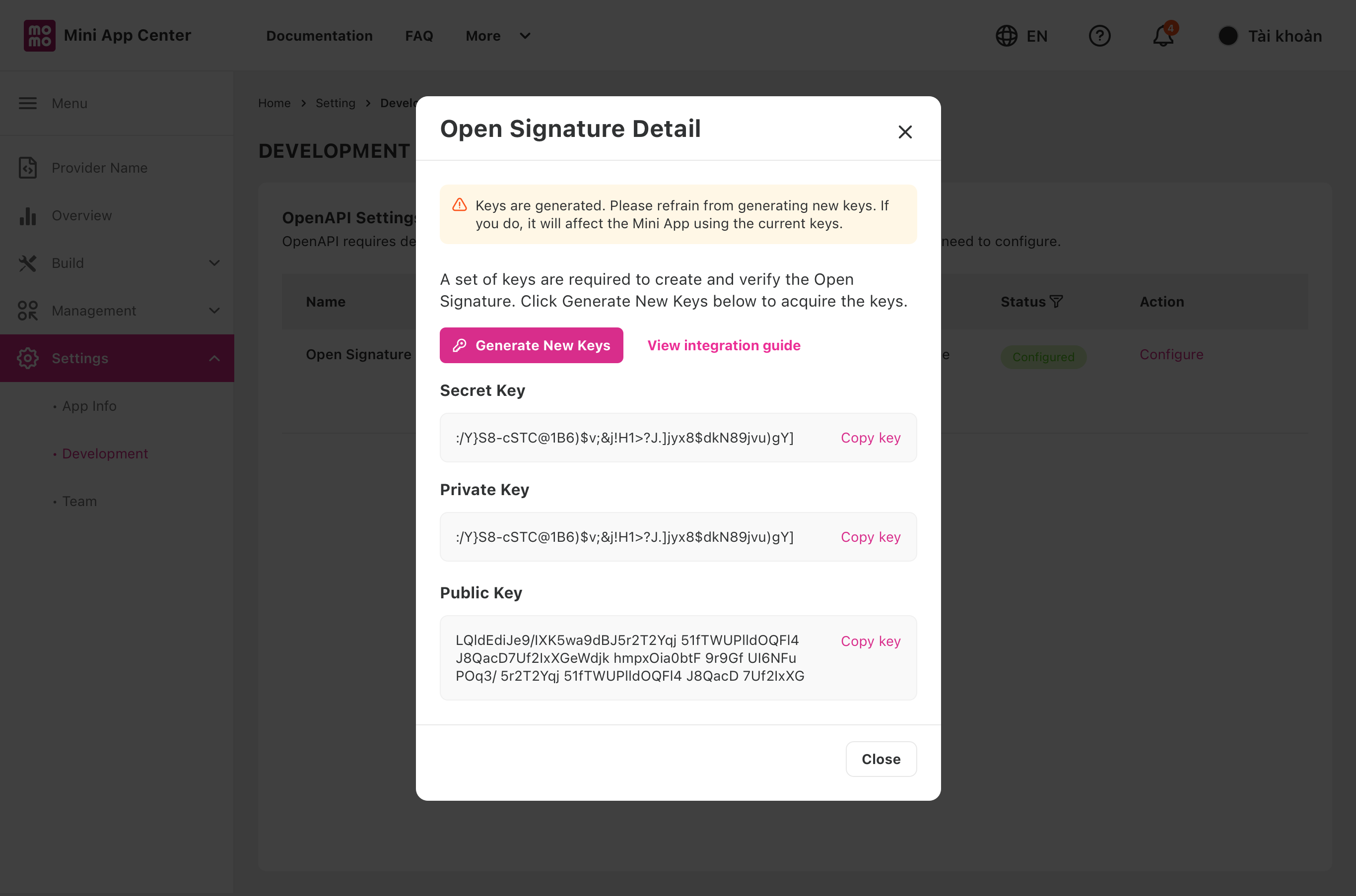
After generating the keys, you can copy and implement them into the source code. For details on creating and verifying the Open Signature using the generated keys, please refer to our Open API Security documentation.
Be aware not to generate new keys after acquiring one. If you generate another set of keys and the old keys become invalid, Open Platform will not process OpenAPI requests sent from Mini App using old keys.
The keys are used for:
- Secret Key and Private Key: used for creating the Open Signature
- **Public Key: **used for validating the Open Signature by Open Platform
CHANGE KEYS
The developers can change the keys if there is something wrong with the existing ones (for example, if the keys are stolen). First, access the Mini App Center and open the Mini App Detail page. On the Mini App Detail page, choose Setting > Development.
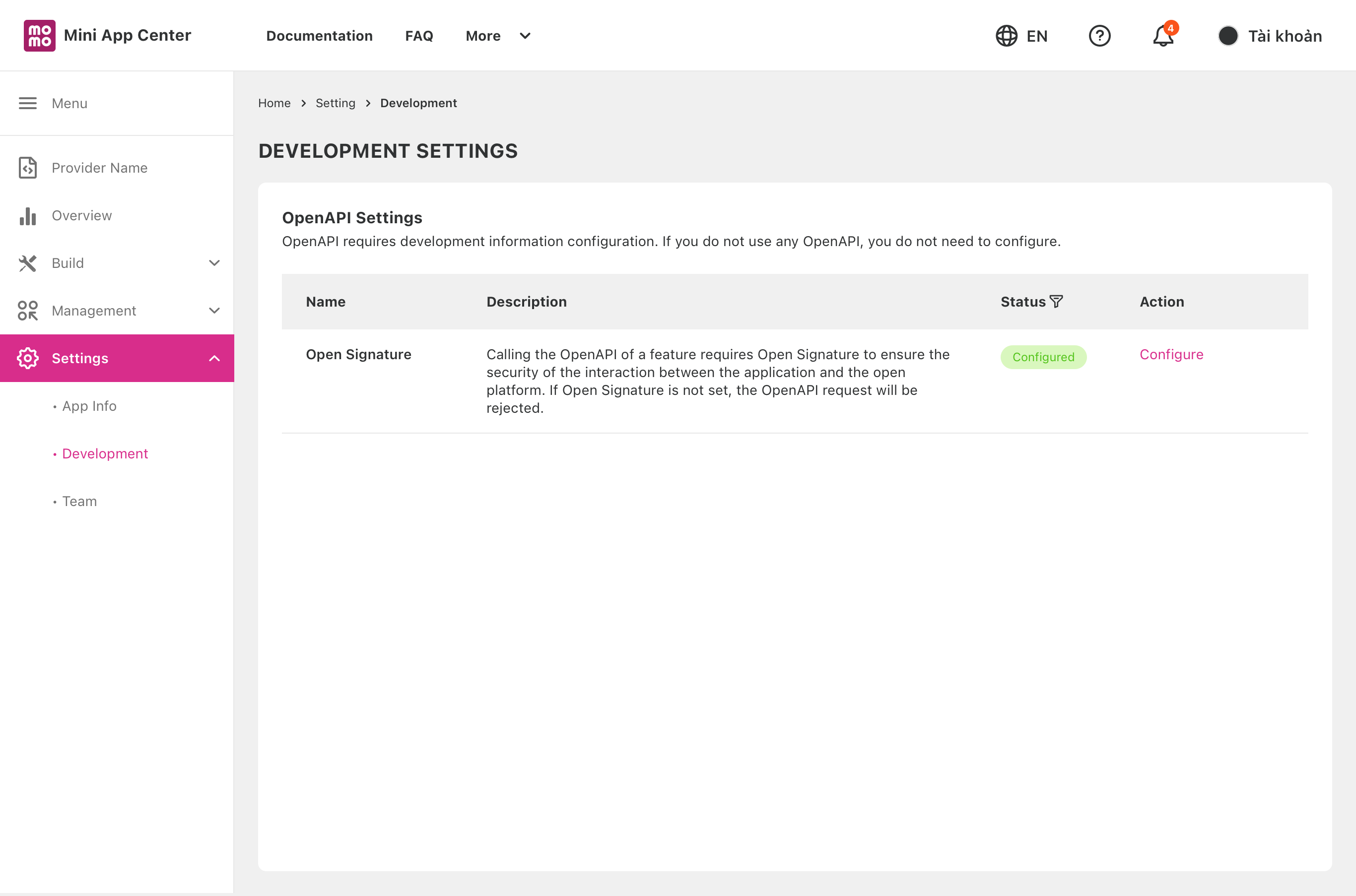
On the **Development Settings **page, click Configure in the Action column of the Open Signature setting.
On the Open Signature Detail page, click Generate New Key to generate a new set of keys.
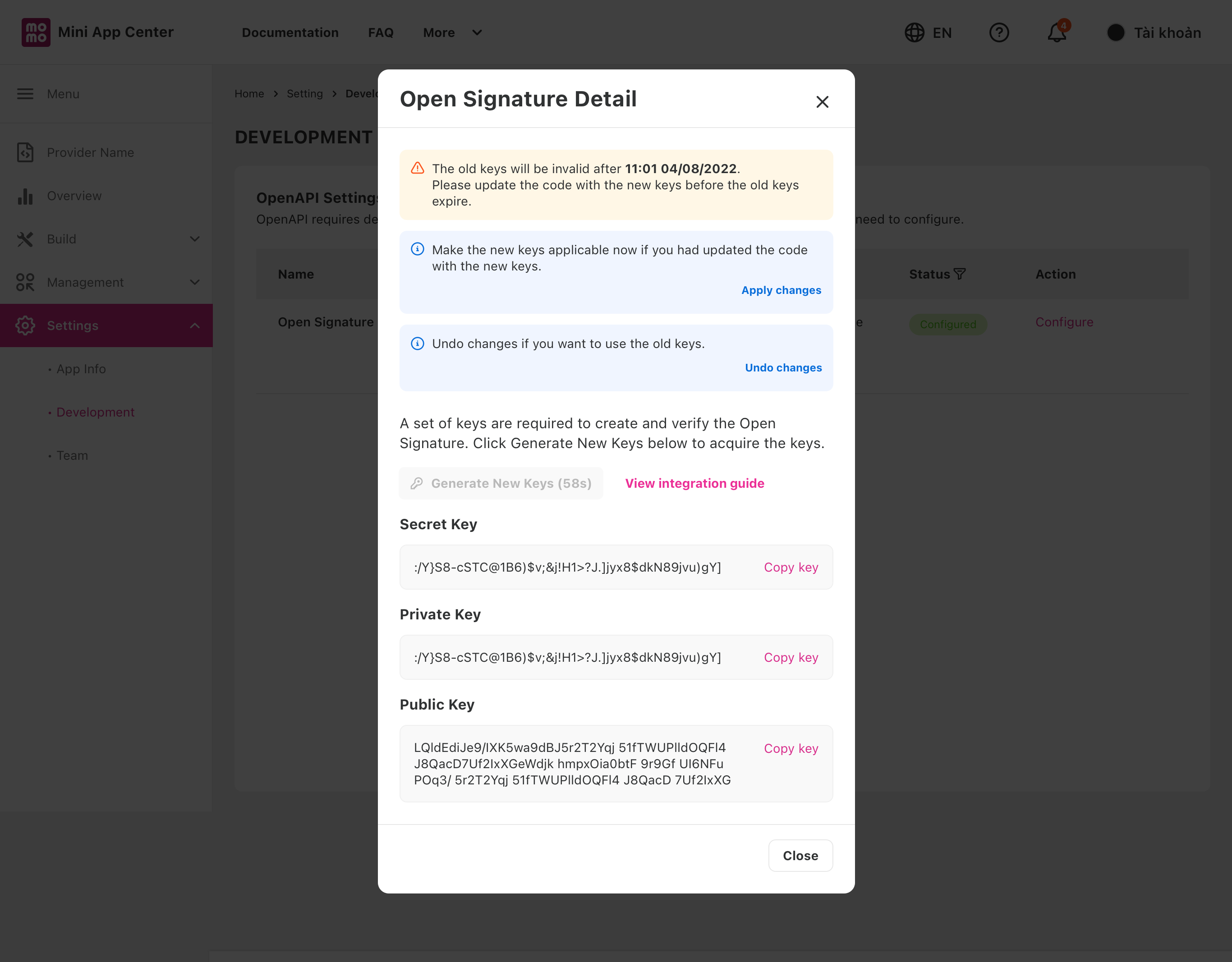
7 days (168 hours) after generating new keys, the new keys will automatically become valid, and the old keys will become invalid. The developer must update the source code with the new keys within that period.
After ensuring the source code is successfully updated, the old keys can become invalid in two ways:
- The old keys become invalid after the expiration date is reached
- The old keys become invalid right away by clicking on the Apply changes button
If developers still want to use the old keys, they can revert the changes by clicking on the Undo changes button.